
How to Access Remote Desktop Client from Linux | RDP Tutorial


I am back with another Linux blog. As you may already know, Windows comes with built-in Remote Desktop client app called Remote Desktop Connection, also known as RDP. It allows users to easily connect to and manage remote systems directly from Windows operating system.

But, in any Linux system doesn't have any built-in Remote Desktop client app, You have to manually install a third-party app to access remote system, and there some few on the web, so I am going to introduce you a most popular and powerful Remote Desktop client app called Remmina remote desktop client, It allows users to easily connect to and manage remote systems directly from Linux operating system.
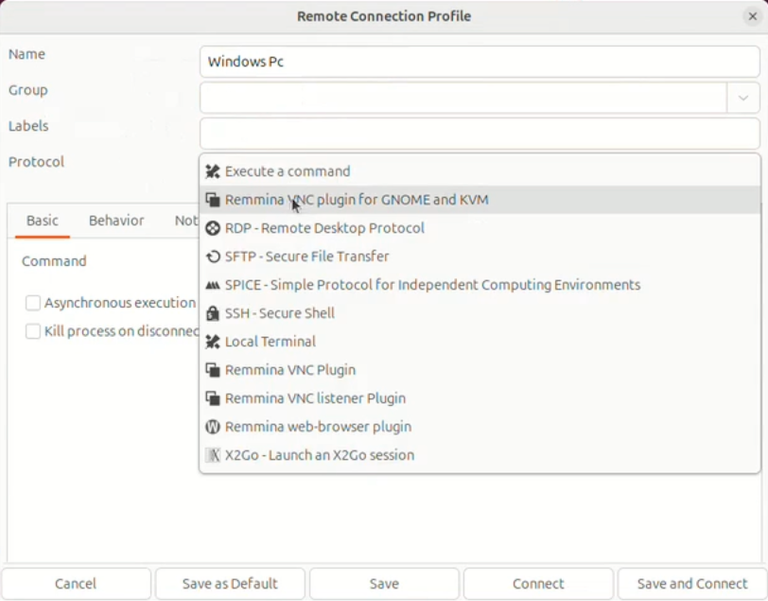
This is the simple interface of the Remmina Remote Desktop Client app.

Here are the main systems and services you can connect with using Remmina:
Windows systems — via RDP (Remote Desktop Protocol)
Linux systems — via SSH, VNC, X2Go, or RDP
macOS systems — via VNC or RDP
FreeBSD / Unix systems — via SSH, VNC, or XDMCP
Raspberry Pi — via VNC, SSH, or RDP
Virtual Machines — VMware, VirtualBox, Proxmox, Hyper-V, etc.
Cloud servers / VPS — AWS, Azure, DigitalOcean, Linode, etc. using SSH or RDP
Remote desktops with SPICE support — commonly used in KVM/QEMU virtualization
Network devices — routers, switches, Linux-based appliances using SSH
Web-based connections — HTTP/HTTPS plugin support available.
Remmina can connect to many types of remote systems using different protocols.
For install Remmina remote desktop client, it's available in the Linux App Center, so you can directly install from the Linux App Center.

You can also install it by command line, here you can follow to install it-
Just open the terminal and paste this single command-
sudo snap install remmina
If you still having issue while installing the Remmina Remote Desktop Client, or how you can connect the remote system, I have created a video in details, you can watch the full video-
Congratulations @an1info! You have completed the following achievement on the Hive blockchain And have been rewarded with New badge(s)
Your next target is to reach 1750 upvotes.
You can view your badges on your board and compare yourself to others in the Ranking
If you no longer want to receive notifications, reply to this comment with the word
STOPThis post has been manually curated by @bhattg from Indiaunited community. Join us on our Discord Server.
Do you know that you can earn a passive income by delegating to @indiaunited. We share more than 100 % of the curation rewards with the delegators in the form of IUC tokens.
Here are some handy links for delegations: 100HP, 250HP, 500HP, 1000HP.
100% of the rewards from this comment goes to the curator for their manual curation efforts. Please encourage the curator @bhattg by upvoting this comment and support the community by voting the posts made by @indiaunited.